Linux 5 min read
NO-CARRIER, 169.254.x.x, and a NetworkManager Surprise
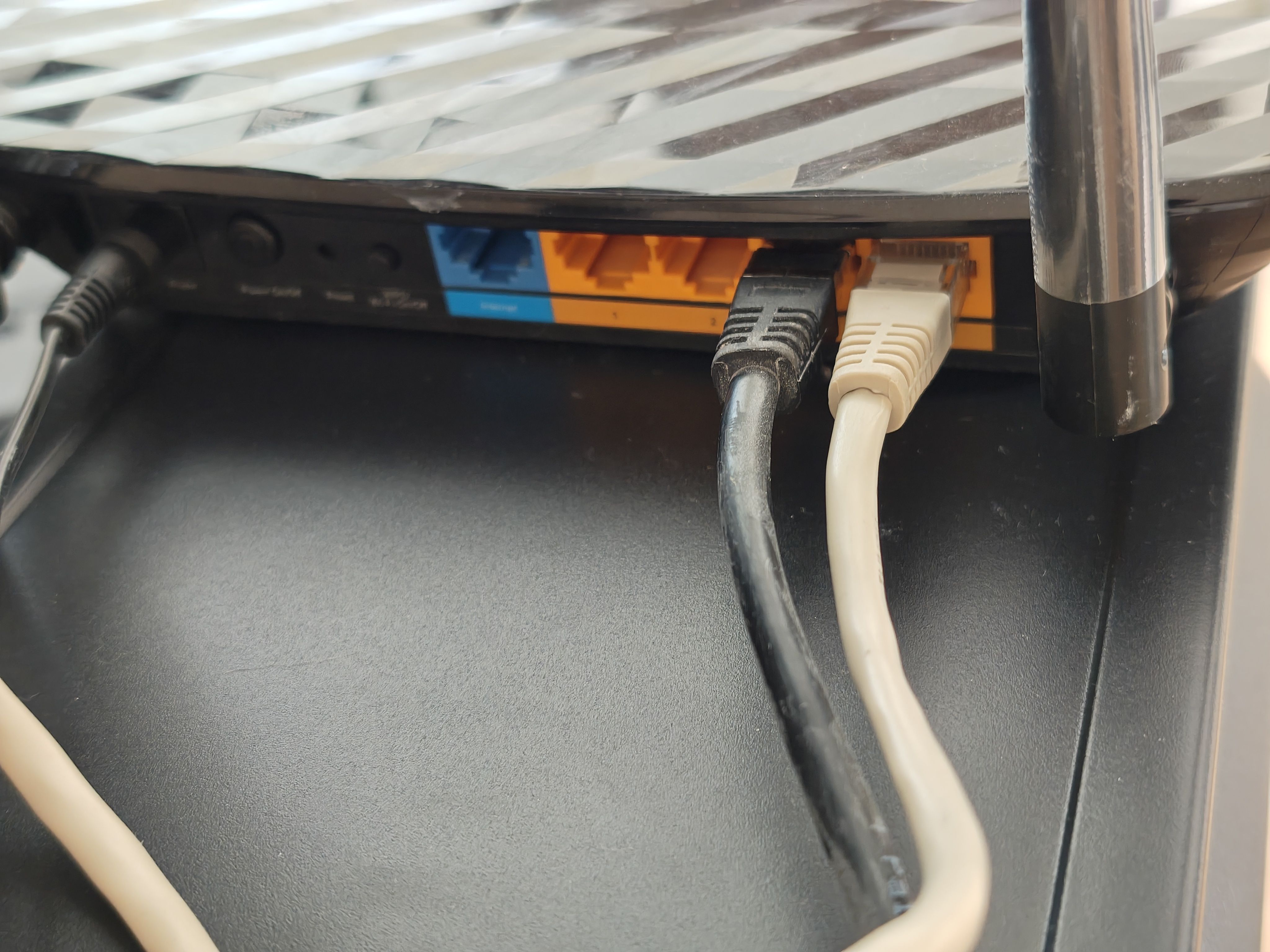
I installed a fresh Ubuntu on a spare machine, with one simple goal: get an SSH server running so I could work on it remotely. Five minutes, tops. Install openssh-server, check the IP, done.
Except the machine had no network. Plugged in via Ethernet to my access point — nothing. Meanwhile Wi-Fi from the very same access point worked fine on every other device in the house. A fresh install, hardware that was running as my main server the day before, a cable that looked perfectly healthy. Everything should have just worked. It didn’t, and my first instinct was to blame everything at once: the AP, the cable, the fresh install, the universe.
Here’s how the actual diagnosis went — bottom-up, one layer at a time — and what it taught me about a NetworkManager behavior I somehow never noticed after two decades of Linux use.
Layer 1: is there anything in the wire at all?
ip a
2: enp1s0: <NO-CARRIER,BROADCAST,MULTICAST,UP> mtu 1500 qdisc fq_codel state DOWN
NO-CARRIER is the kernel telling you there is no electrical signal on the wire. Full stop. At this point DHCP, netplan, firewall, DNS — none of it matters. There’s nothing to configure a connection on. If you see NO-CARRIER, stay at the physical layer.
With three suspects — cable, port, NIC — the fastest move is one isolation test that cuts the problem in half: same cable, same computer, different device. I plugged straight into my main router instead of the AP:
2: enp1s0: <BROADCAST,MULTICAST,UP,LOWER_UP> mtu 1500 qdisc fq_codel state UP
LOWER_UP, state UP — link established. Thirty seconds, and the cable and the NIC are both cleared. So the original plug into the AP simply hadn’t made proper contact. Not a fried port, not a dead switch — after re-plugging everything later, the same port worked fine. The most boring possible culprit: a connector that didn’t click all the way in. It happens more often than anyone admits, which is why “unplug it and plug it back in until it clicks” is a legitimate first-line procedure, not an IT crowd joke.
But the story didn’t end there — because with a working link, I still had no network.
Layer 2: the address of despair
inet 169.254.56.10/16 brd 169.254.255.255 scope link noprefixroute enp1s0
If you’ve never met the 169.254.0.0/16 range: that’s APIPA, a link-local address the machine assigns to itself when it asked for an address over DHCP and got silence back. It’s not a real address — it’s a distress signal. No gateway, no DNS, no internet.
A 169.254 address tells you two things at once:
- The physical link works — otherwise the machine wouldn’t have bothered asking.
- The DHCP conversation never happened.
Which made no sense. The router I was now plugged into was alive and well, happily serving DHCP to a dozen other devices. Why would it ignore this one?
The part nobody tells you: NetworkManager may not retry when you expect it to
It doesn’t ignore it. It was never asked.
The DHCP request had gone out earlier — while the cable was still sitting in the dead connection. NetworkManager sent the query into the void, got nothing, fell back to the link-local address… and stayed there. It did not retry automatically — at least not quickly enough to help me here. When I later moved the cable to a working port, from NetworkManager’s point of view nothing had changed: the connection was “already configured”. Configured with garbage, but configured.
The fix is one command. First, check what your connection profile is actually called:
nmcli connection show
NAME             UUID          TYPE      DEVICE
netplan-enp1s0   cac41fbe-...  ethernet  enp1s0
Small trap here: on a fresh Ubuntu install the wired profile is named netplan-enp1s0 (it’s generated from netplan), not the “Wired connection 1” that half the tutorials on the internet assume. If nmcli greets you with no such connection profile, that’s why.
Then force a re-activation, which includes a fresh DHCP request:
sudo nmcli connection up netplan-enp1s0
Connection successfully activated
Two seconds later ip a showed a proper address from the router’s pool, and the machine was on the network. A reboot would have “fixed” it too — but one command is faster, and more importantly, now I know why it worked.
The method, distilled
Bottom-up, stop at the first layer that fails:
ip a—LOWER_UPorNO-CARRIER? OnNO-CARRIER: reseat the cable, then run the isolation test (same cable + same machine into a different device).- Got a 169.254.x.x address? DHCP got no answer, and it won’t be retried automatically.
sudo nmcli connection up <profile-name>— check the name withnmcli connection showfirst. ip route— the default gateway should point at your router.ping— the gateway first, then8.8.8.8, then a domain name. Three pings that cleanly separate a local problem from a routing problem from a DNS problem.
Every step is one command with an unambiguous answer. The whole thing — from “dead network” to a working SSH session — took about fifteen minutes, most of which was me carrying a cable between rooms.
And yes, the SSH server took the promised five minutes after that. The network took the other fifteen. Classic.
Comments (0)
Be the first.
Add a comment